
Working with accounts
 Sergey Tehnoway
An overview of saved account management and available operations in UniMessenger and UniInstagram.
Some materials may use a previous version of the interface. The program's core features and workflow remain up to date.
The Accounts tab
Accounts in UniMessenger / UniInstagram are a set of folders and files extracted from an emulator. On the "Accounts" tab you can see all accounts saved to the program and perform various actions on them.
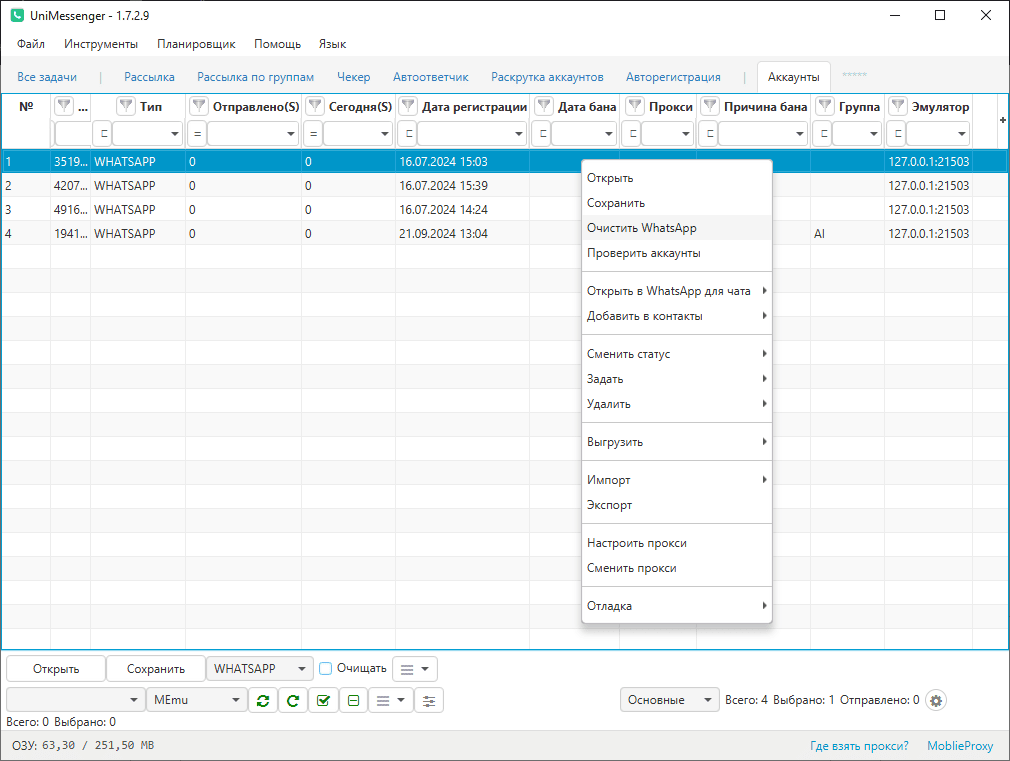
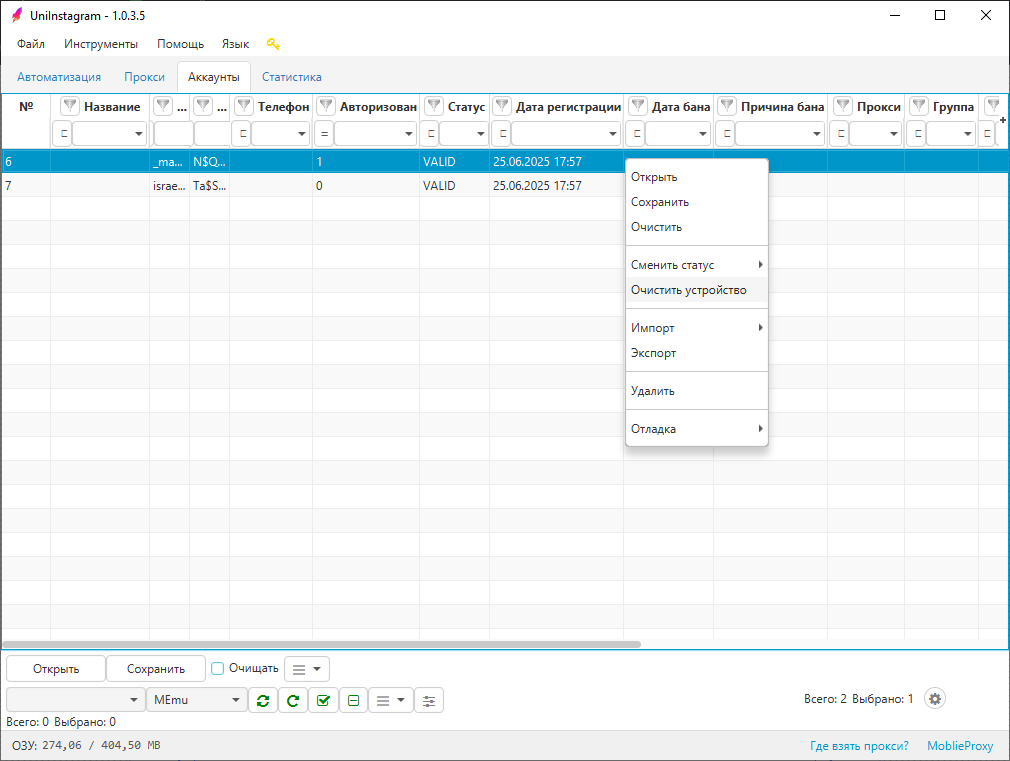
- To change the list of columns, click + (the rightmost column).
- Each column has a filter.
- To open the context menu, right-click anywhere in the tab's working area.
On the bottom panel of the Accounts tab (see screen 1 for UniMessenger, see screen 2 for UniInstagram):
- "Open" / "Save" buttons — actions on accounts.
- The "Clear" checkbox — if enabled, after saving, the data in the WhatsApp app in the emulator(s) is cleared and you can immediately register the next account. If disabled, the account saved to the program stays open in the emulator.
- The "≡" button — (three horizontal lines) duplicates the functions in the right-click menu of the table.
Column information
Account columns that need explanation:
- Status — can be VALID, BAN, NOT_IN_WORK. All statuses can be changed manually. NOT_IN_WORK can be set by you if you don't want the accounts to be taken into work. The program will then use only valid accounts.
- Ban reason — can be VIEW (because the corresponding text was found on the screen); ERR_MSG (if marked as banned because it failed to send a message n times in a row — n is set in the settings); NOT_REG (the account has not finished registration); MANUAL (marked as banned manually).
- Device (Emulator) — the device identifier (for an emulator it looks like an IP address, for a phone it's alphanumeric).
Unique to UniMessenger:
-
4 pairs of Sent and Today columns — show the number of messages sent from the account. Sent, Today (S) — within broadcasts; Sent, Today (С) — within conversations (and warm-up in general); Sent, Today (A) — within the autoresponder; Sent, Today (G) — within group broadcasts.
-
Type — can be WhatsApp (account of the official WhatsApp app) or Business (WhatsApp Business account).
-
# in pair — the account number in the last pair when chatting with each other. 1 or 2 — that is, every account with number 1 was paired with some account with number 2.
-
Chat date — the date when the account last entered a chat during warm-up (mutual conversation).
-
Columns — SMS service, Photo, Status, PIN — filled in if the account was registered automatically: which SMS service was used, whether the photo, status, and PIN were set.
Unique to UniInstagram:
- 2FA — the key for sign-in when two-factor authentication is enabled.
- FBid — the unique profile identifier.
- Group — double-click a cell to set the group for the selected account.
Menu functions
The menu available on right-click in the table:
- Open, Save, Clear, Delete — actions on accounts.
- Import / Export — adding accounts to the program from a folder / file, saving from the program to a folder / file. More on import / export and the required folder / file structures — here.
- Debug
- Change status — lets you mark the selected accounts as valid, banned, or unused.
Unique to UniMessenger:
- Check accounts — checks the selected accounts (in the selected emulators) for bans. The check looks only for text indicating that the account is banned. This check will not turn banned accounts back into valid ones.
- Open in WhatsApp for chat — (in the specified emulator).
- Set group, emulator, proxy — (for the selected accounts).
- Delete DB — (for the selected accounts) — clears everything saved for the account: messages, call history, and more. If the account whose DB you want to clear is open in an emulator, first clear data in the emulator; otherwise the account's DB will be restored from the emulator when you switch accounts.
- Delete chat date, device data, proxy, all chats, settings files — (for the selected accounts).
- Export statistics — for messages sent during broadcasts over the last month (a .csv table is generated).
- Export dialogues with replies — for the selected accounts (a .csv table is generated).
- Configure proxy — specify the path to the file, set the program for the proxy.
- Change proxy — on click, changes the proxy in the selected emulators using the specified file.
Unique to UniInstagram:
- Clear device — if the account is already bound, it will not open on another device. To make it work, you need to clear the device or delete it manually.