
Import / Export accounts
 Sergey Tehnoway
The Accounts tab has import / export functions in its context menu.
Some materials may use a previous version of the interface. The program's core features and workflow remain up to date.
Exporting accounts from the program
To export accounts from the program:
- Select the accounts you need in the table.
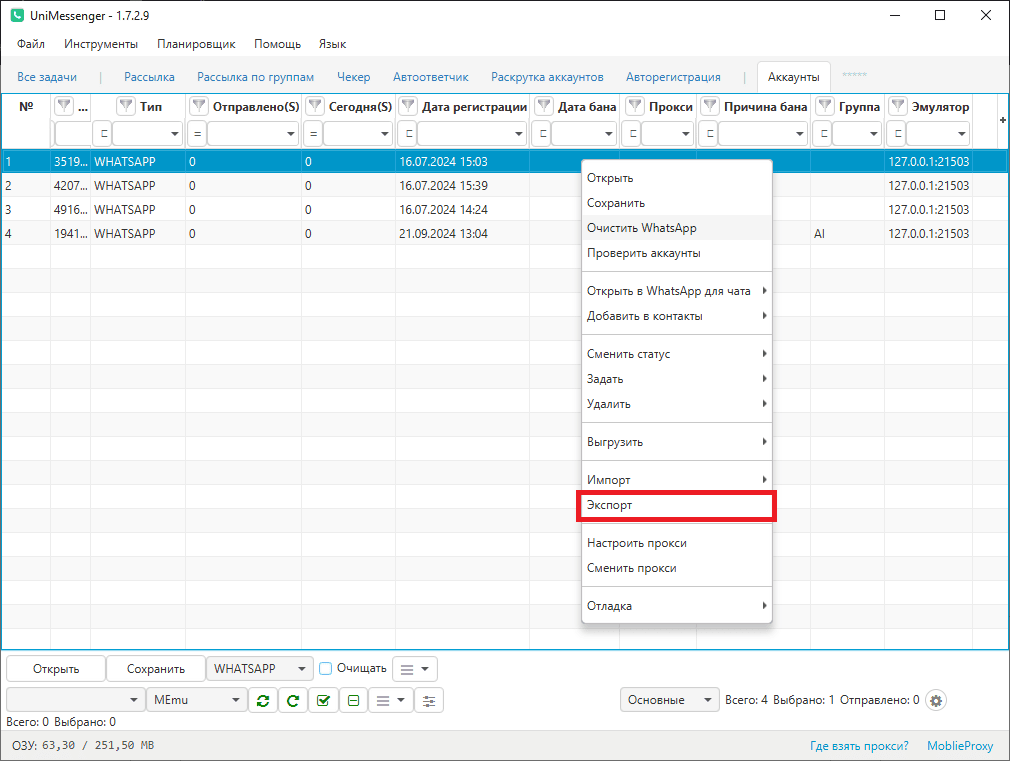
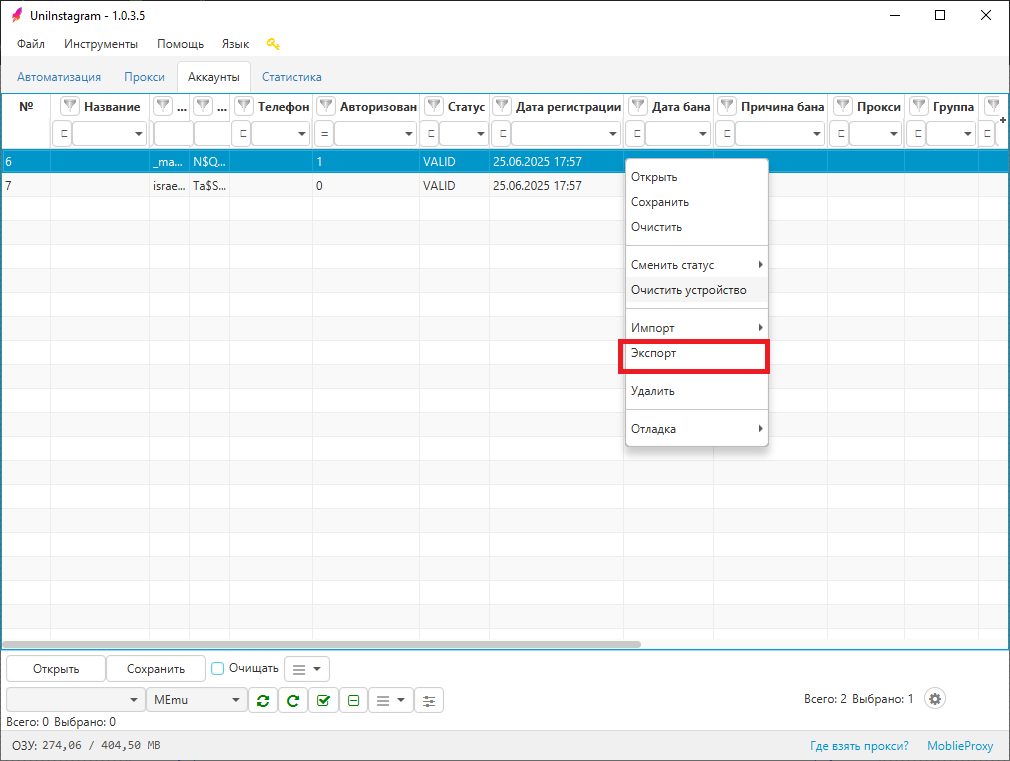
- Right-click inside the table and choose "Export" (see screen 1 for UniMessenger, see screen 2 for UniInstagram).
- After a successful export:
- In UniMessenger — you will be prompted to remove the accounts from the program and pick an export directory. As a result, a separate folder is created for every exported number, containing the WhatsApp account data (see screen 3).
- In UniInstagram — a notification about the successful save appears, with the option to open the file or the folder. The data file is saved to the program's directory. The file name shows the export date and the number of accounts.
Importing accounts into the program
- You can import from a folder or a .zip archive for UniMessenger, or from a file for UniInstagram.
- You can also import accounts from third-party programs if these are emulator accounts — that is, a folder with files.
- Accounts are not duplicated: if you import accounts that already exist in the program, their files are simply updated.
- Pay attention to the folder / file structure required for correct import. Details on the structure for each program are below.
To import accounts into the program:
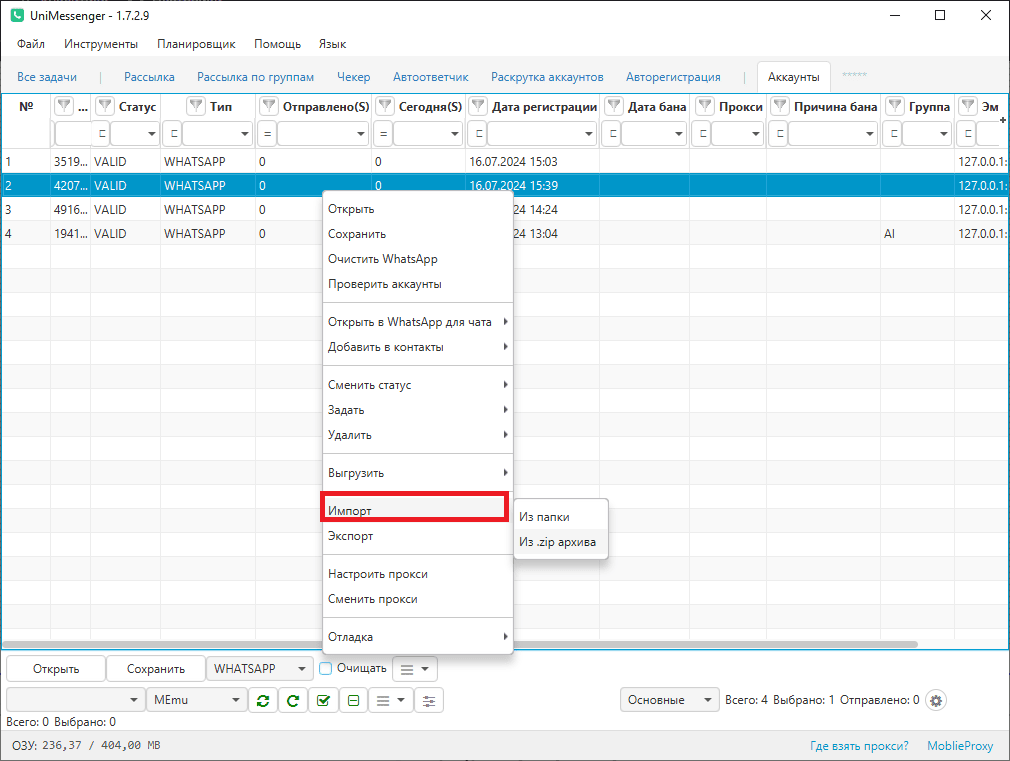
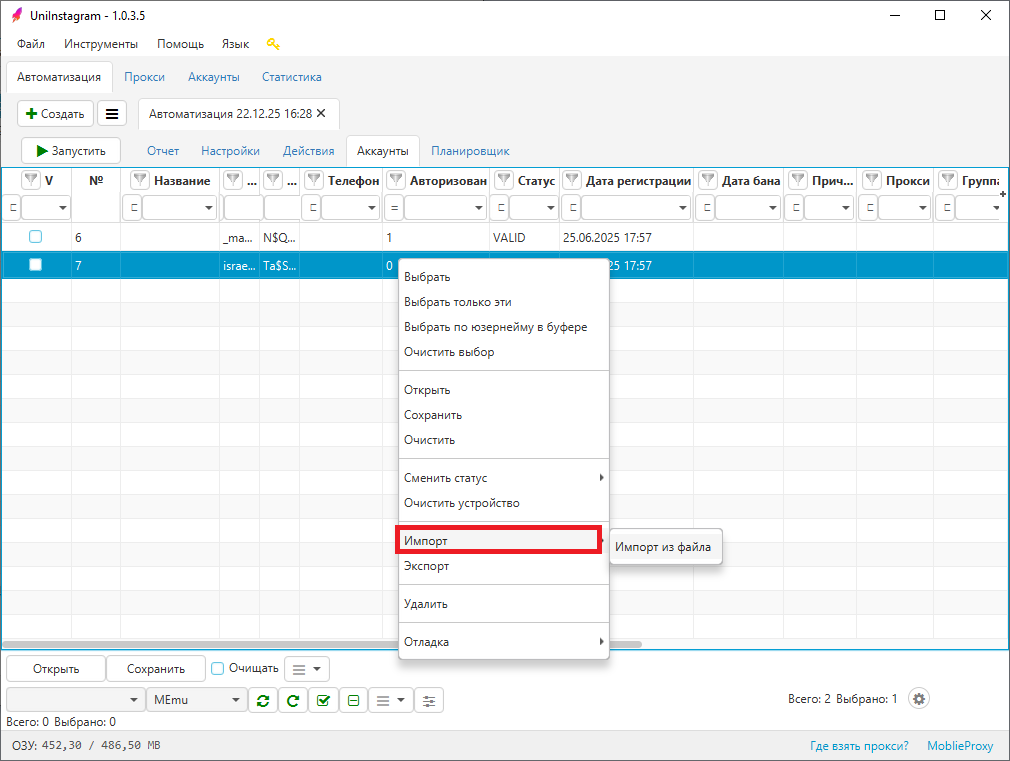
- Right-click inside the table and choose "Import" (see screen 5 for UniMessenger, see screen 6 for UniInstagram).
- Point to a folder with an account or a folder that contains multiple account folders for UniMessenger, or to a file for UniInstagram.
What the account folder must look like for import into UniMessenger
The main rule: the folder / .zip archive for import must have the same file structure as the exported one.
An import folder is a folder that contains account folders inside it (see screen 3). The name of the account folder can be anything; inside it there must be a folder named com.whatsapp or com.whatsapp.w4b, which contains the actual account files from the emulator. If it's a .zip archive, the folder structure inside the archive is the same.
import_folder/
├── account_001/
│   └── com.whatsapp/
│       └── ...account files
├── account_002/
│   └── com.whatsapp.w4b/
│       └── ...account files
What the account file must look like for import into UniInstagram
The imported .txt file can contain data of 4 types with the following structure:
login|pass
login|pass|email|email_pass
login|pass|2fa
username|password|2fa|group|device
The separator can be one of (pick one type and always use only it): | , : ; \t
How the separators look in the document (use only one type):