
Choosing the device (emulator / phone) and its settings
 Sergey Tehnoway
How to select an emulator or phone, configure the device, and perform available actions.
Some materials may use a previous version of the interface. The program's core features and workflow remain up to date.
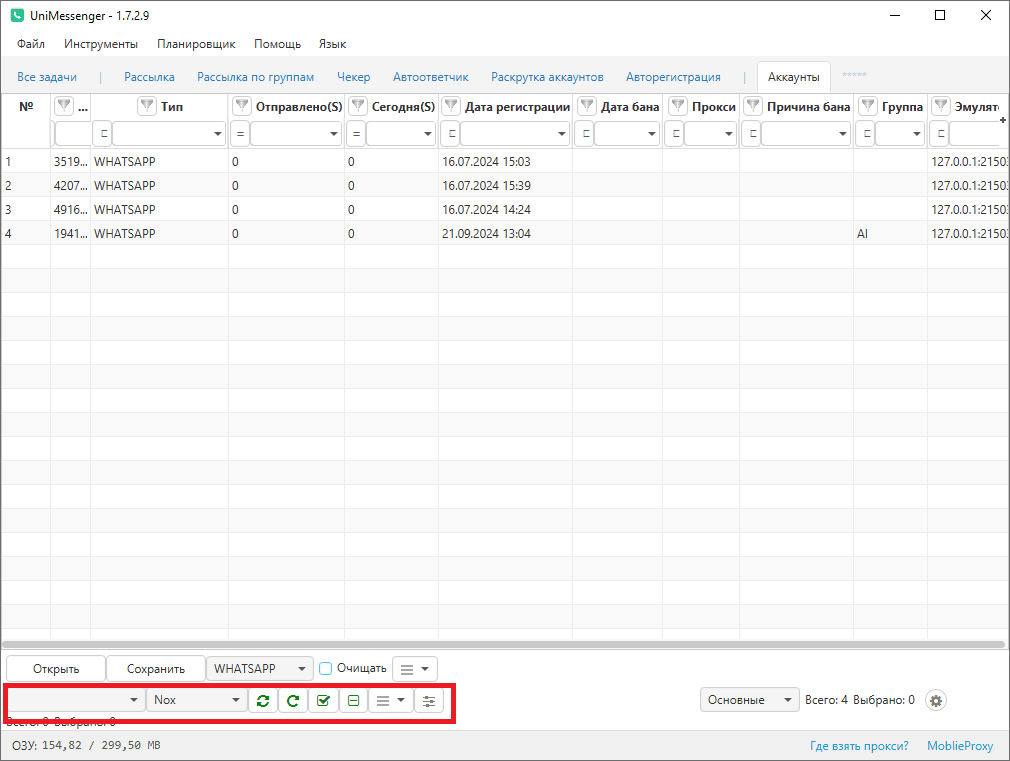
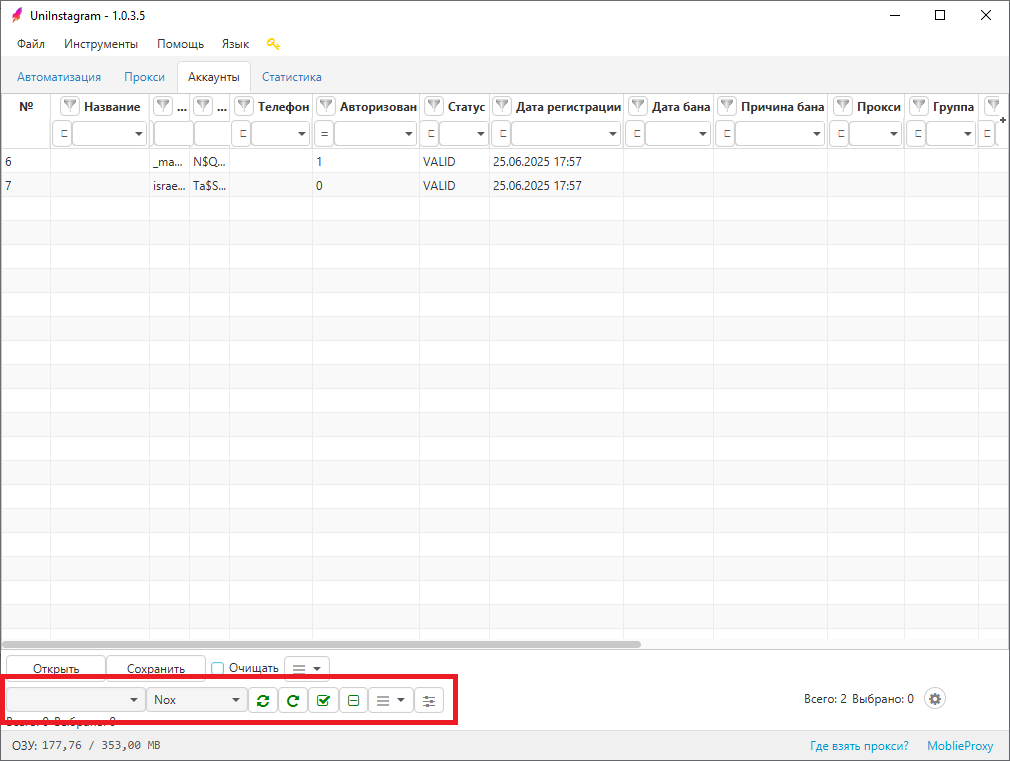
Device selection (emulator / phone), the actions available with it, and its settings are on the bottom panel of the Accounts tab (see screen 1 for UniMessenger, see screen 2 for UniInstagram).
Device settings
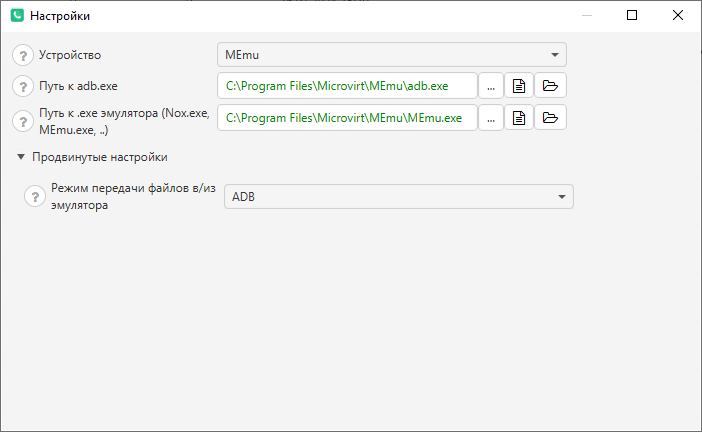
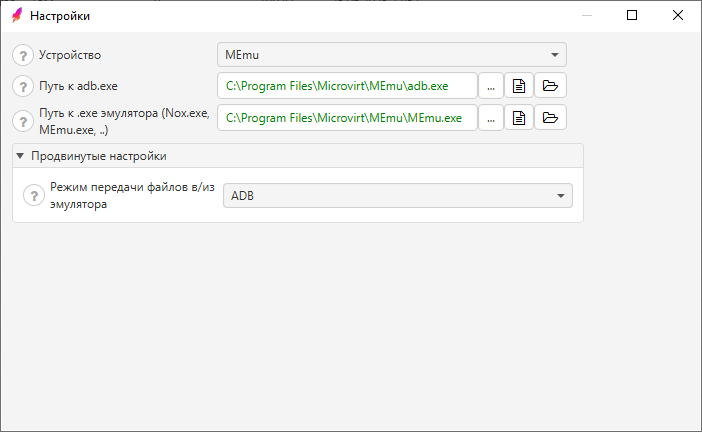
- Device — you need to specify which device you are using (Nox / MEmu / LDPlayer / BlueStacks / Phone / Other).
- Path to adb.exe — must be set for the device in use; it is filled in automatically on first launch.
- Path to the emulator .exe (Nox.exe/MEmu.exe) — the emulator is usually installed in Program Files, so look there. Must be set when using the "Reconnect to emulators" or "Uniquize in Nox" functions.
Advanced settings (don't change unless needed):
- File transfer mode to/from the emulator — ADB mode is used by default.
Was this article helpful?