Configuring the Nox / MEmu emulator
 Sergey Tehnoway
Recommended Nox and MEmu settings for stable operation with UniMessenger.
You can download the Nox or MEmu emulator from the official sites. Detailed documentation and instructions for each emulator can be found on the emulator's official sites and forums.
After installation you'll get the Nox, Nox Multi-Drive Manager or MEmu, Multi-MEmu shortcuts for Nox and MEmu respectively.
Nox Multi-Drive Manager and Multi-MEmu let you create/delete emulators, launch and stop them, set settings for each or for all at once, and perform other actions. The Nox and MEmu shortcuts let you interact with only one emulator.
To install WhatsApp in the Nox / MEmu emulator, download the WhatsApp.apk or WhatsAppBusiness.apk file and drop it onto the emulator's home screen (see screen 1). You can download the files here.
Important emulator settings
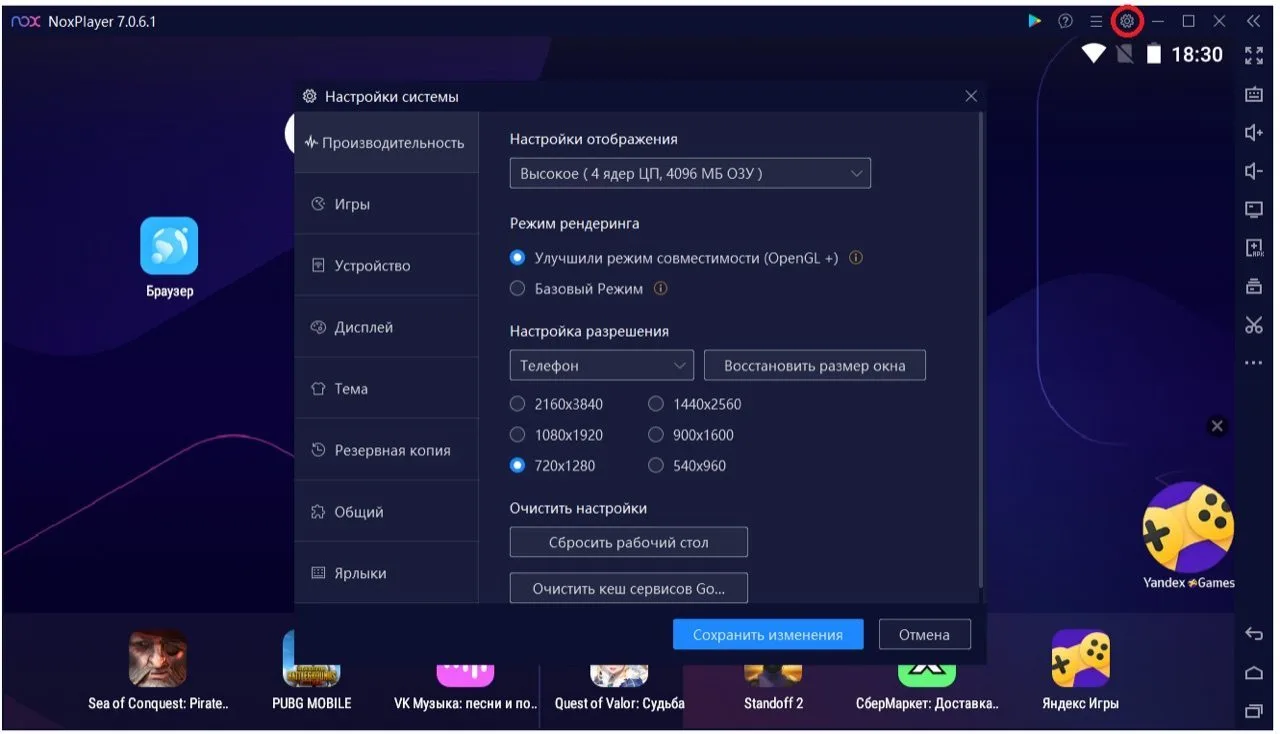
- Performance settings — how many cores and how much RAM are available to the emulator; setting low values is not recommended: the emulator needs access to the PC's resources for stable operation.
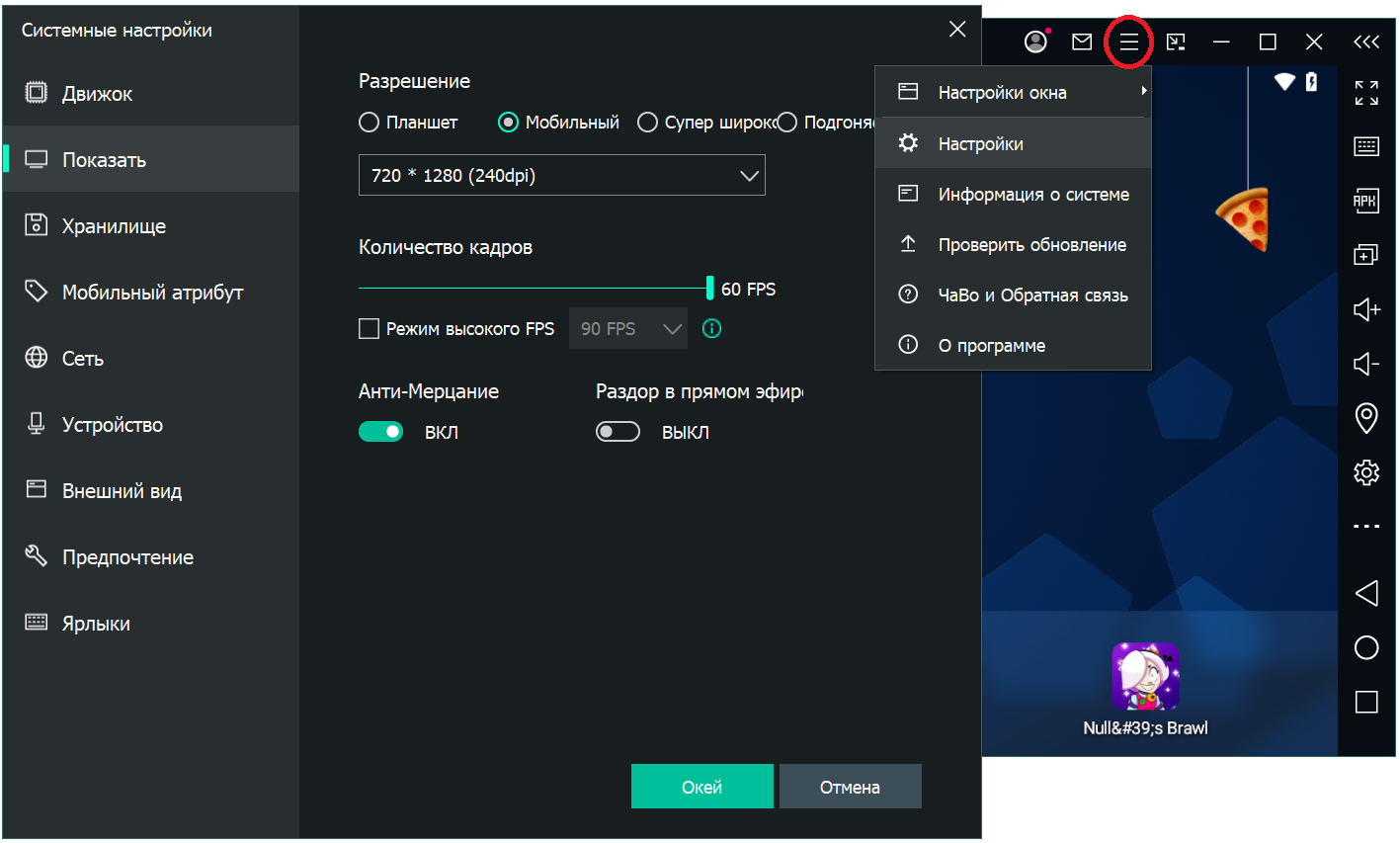
- Resolution and DPI — pick "Mobile" and the resolution (for example, 720*1280). When working with several emulators, a low DPI is recommended.
- Rendering mode — based on our experience, on a PC with a graphics card DirectX mode runs better and more stably. For each PC, try all modes to pick the most stable one.
- Root access — not required, needed in some cases.
You can also change the phone model, IMEI, and other settings. Some settings are only available when the emulator is running.
Settings are roughly the same in Nox and MEmu, but the UI differs. To change settings, you need to:
- for Nox: click the "⚙" (gear) icon in the top menu (see screen 2).
- for MEmu: click the "≡" (three horizontal lines) icon in the top menu → "Settings" (see screen 3).
How to create multiple emulators
To create multiple emulators, use the Nox Multi-Drive Manager / Multi-MEmu shortcut. In Nox Multi-Drive Manager, open the Multi-Drive Manager tab in the left column to start working with multiple emulators (see screen 4). For MEmu nothing extra is needed (see screen 5).
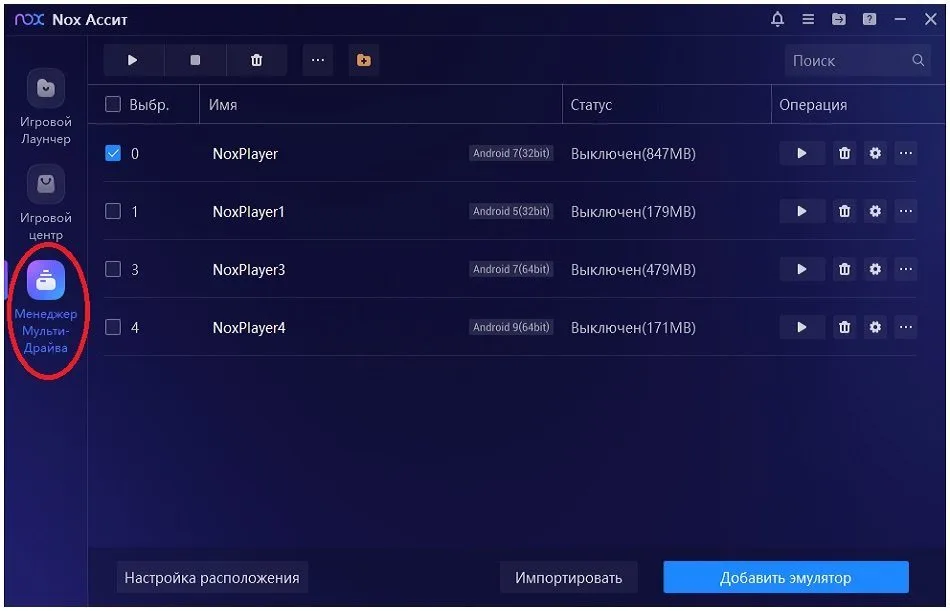
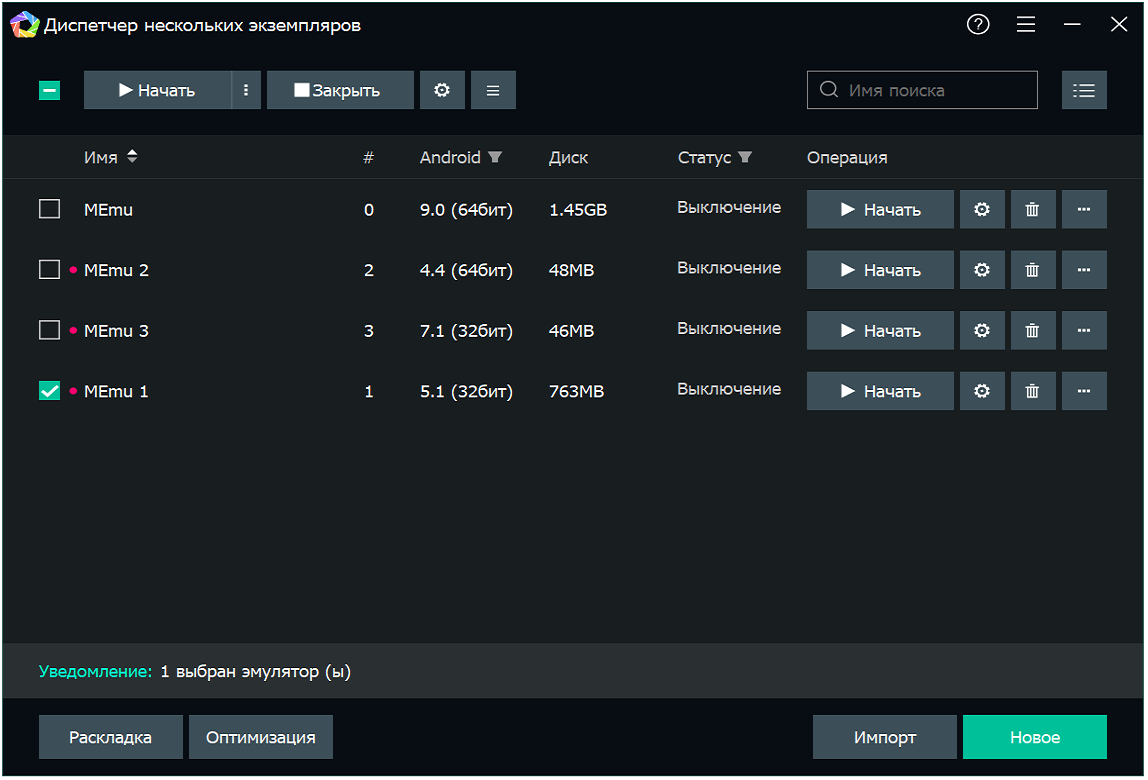
For creation in Nox and MEmu, emulators are available for Android 5, 7, 9, and 12. UniMessenger does not guarantee stable operation on Android 12. You can use Android versions 5, 7, and 9 — almost all functionality works under any of the listed Android versions.
In the MEmu emulator the standard "Contacts" app, needed for the program to work, is not preinstalled on all Android versions. More: How to install the Contacts app in the Nox / MEmu emulator.
To add an emulator you need to:
- in Nox: click the "Add emulator" button and pick the required Android version.
- in MEmu: click the "New" button and pick the required Android version.
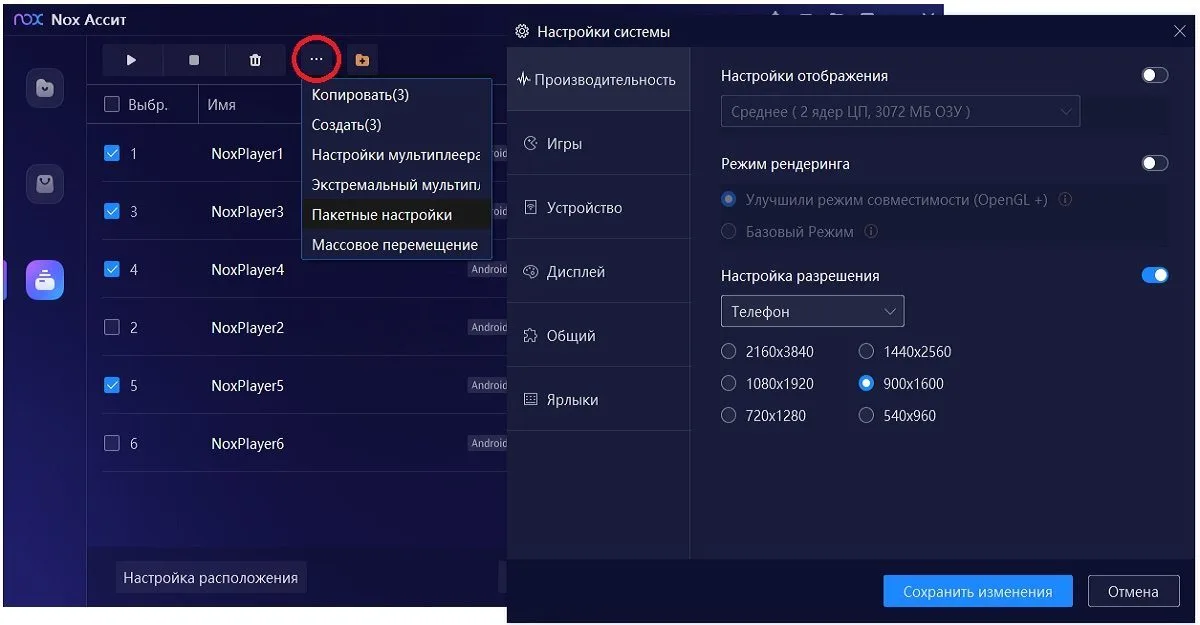
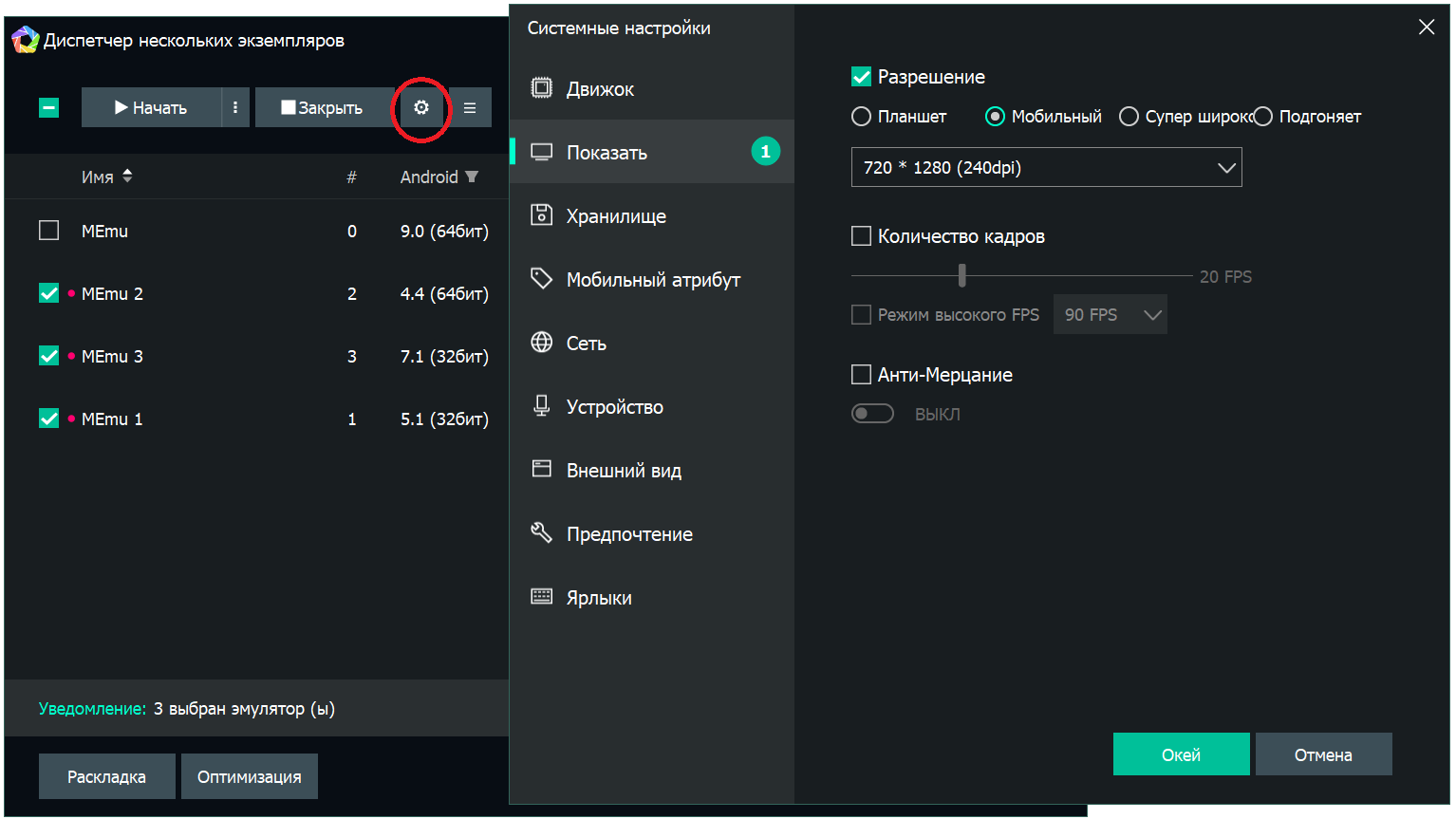
To change settings for several emulators at once, select the emulators with checkboxes and:
- for Nox: click "..." → "Batch settings" in the top menu (see screen 6).
- for MEmu: click the "⚙" (gear) icon in the top menu (see screen 7).