
Auto-registration
How to configure and launch automatic WhatsApp account registration using activation services.
Some materials may use a previous version of the interface. The program's core features and workflow remain up to date.
The Auto-registrator can be purchased with the full version of UniMessenger or separately. When buying only the Autoreg, two tabs are available: Accounts and Auto-registration.
Before enabling Auto-registration, make sure the right Settings are in place and the Activation services are filled in.
The "Work status" tab shows data for every emulator during registration: Emulator, Status, SMS service, Successful, Error.
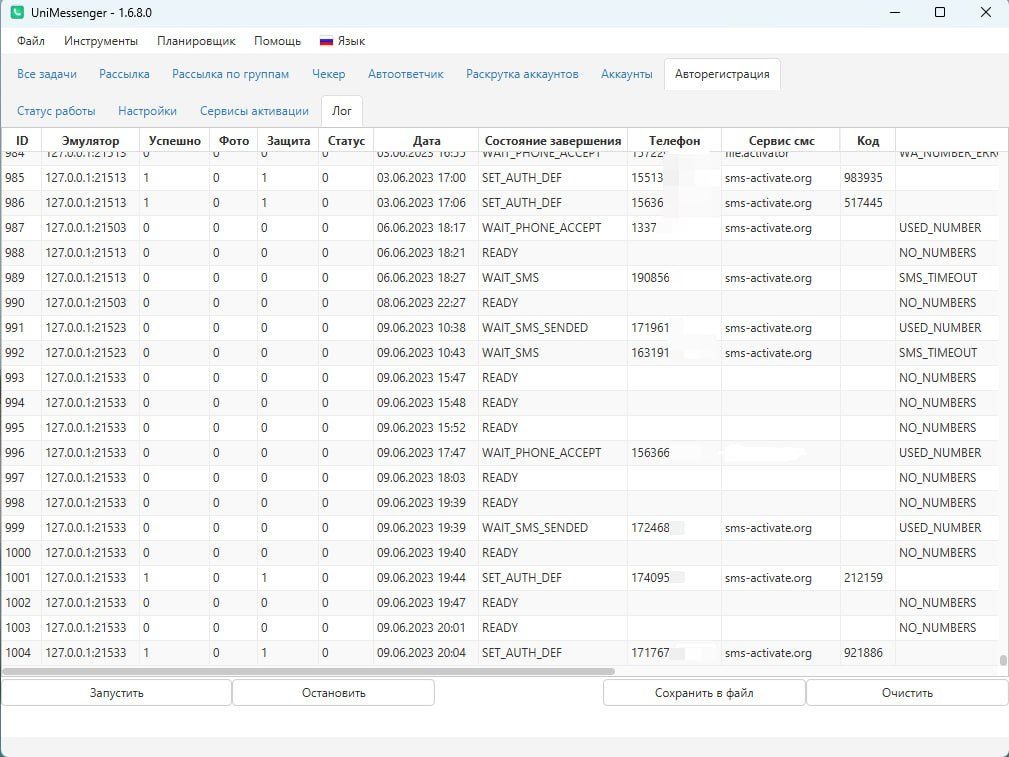
In "Statistics" (before version 1.7.1.9 the tab was called "Log"), registration data is recorded: ID, Emulator, Successful, Photo, Protection, Status, Date, Completion state, Phone, SMS service, Code, Error, SMS check.
For explanations of Auto-registration statuses, see here.
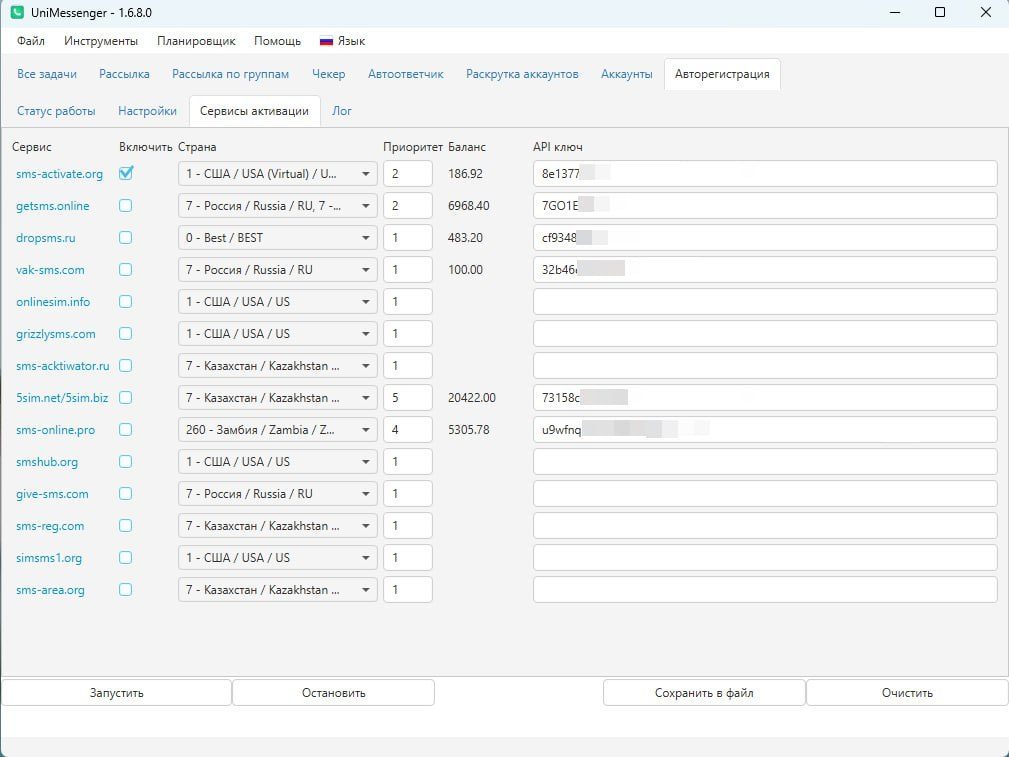
"Activation services" on the Auto-registration tab
- Enter the API key for the services you use. If the data was entered correctly, the balance will update.
- Tick the services you plan to work with.
- Set priority for the services — if the program has any issues with the 1st service in the list, it will move to the next, and so on in a circle. Priority is assigned automatically in the order you tick services. The order can also be changed manually.
- Pick the countries whose numbers will be used to register accounts.
"Settings" on the Auto-registration tab
-
Pick which emulator you will use. For more on emulator selection and settings, see here.
-
Fill in the settings on the "Basic" tab. Specify the work mode, account type, and how many to register.
-
Specify the templates folder on the "Accounts" tab. All names and any text must be Latin (English letters). You can set a PIN code, image, status, and privacy for the avatar.
-
Configure timeouts. Timeouts and time are specified in ms — 60000 is 60 seconds.
-
Use other settings as needed:
- Proxy. More: Working through a proxy.
- Blacklist and number-mask blacklist.
- Call. After a successful registration, accounts will make a call to the numbers specified in the file. You can set the time, count, and type of calls.
- Captcha — enter the API key for captcha. During WhatsApp registration a captcha can appear after the phone is entered; the RuCaptcha service is used for automatic solving.
- Other. Reinstall WhatsApp, run requests, restart the emulator, save a screenshot on registration error.
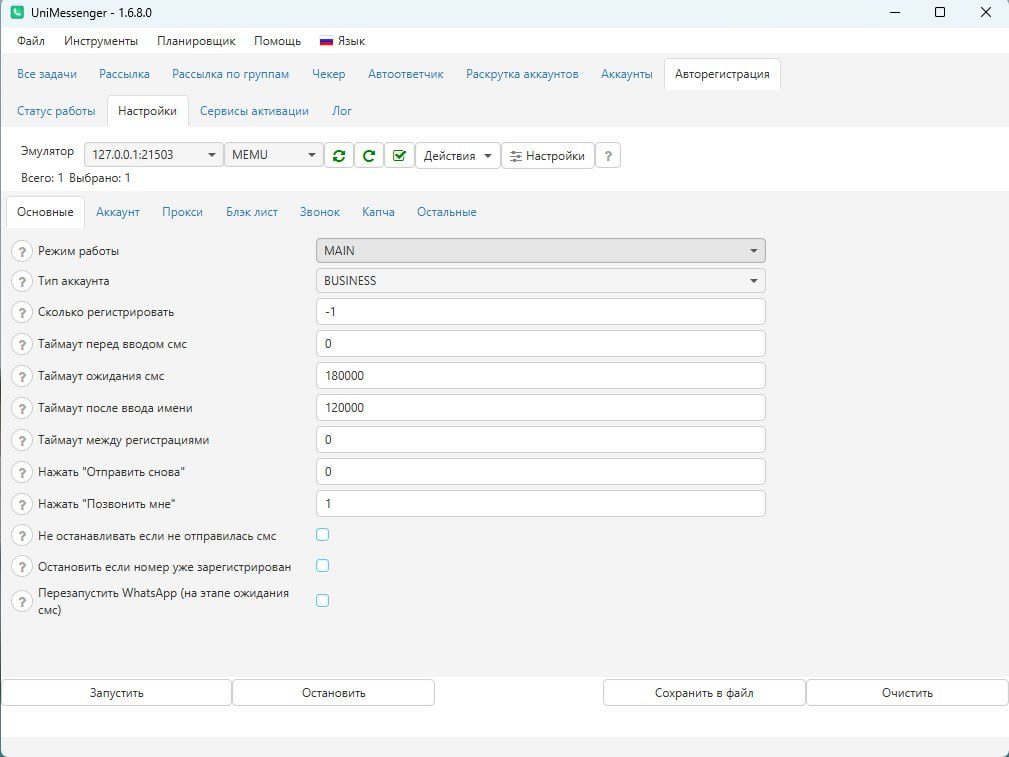
"Basic"
- Work mode: MAIN — the main mode, accounts are registered and saved to the program. SAVE_SMS_TO_FILE — registration doesn't finish and accounts aren't saved to the program. Registration runs up to the moment the SMS is received; after that the phone number and the SMS are saved to a file in the UniMessenger/Export folder, and a new registration begins.
- Account type: WHATSAPP — a regular account through the main WhatsApp app. BUSINESS — a business account through WhatsAppBusiness.
- How many to register — by default set to no limit (-1). The specified number of accounts must be a multiple of the number of emulators — for example, if you have 2 emulators, the account count should be 2, 8, 20, and so on.
- Tap "Resend" — the "Resend" or "Request SMS again" button will be tapped after the specified time.
- Tap "Call me" — the "Call me" or "Request call again" button will be tapped after the specified time.
- Don't stop if SMS wasn't sent — for call activation. If disabled, in the normal mode: when after entering the number a message appears that the SMS couldn't be sent, registration ends and a new number is taken. If enabled: the program will wait for the code.
- Stop if the number is already registered — disabled by default. If enabled: after entering the number and getting a message that the number is already registered on WhatsApp, the program cancels the registration (ALREADY_REGISTERED) and takes the next number. This happens, for example, when registering on WhatsApp Business while the number is already registered on WhatsApp.
- Import contacts — before every registration, 30–60 contacts will be added to the contacts; the numbers are generated depending on the number being registered.
- Restart WhatsApp (at the SMS-wait stage) — can shorten the time needed to request a repeat SMS or call.
"Accounts"
- Templates folder — the folder that must contain: a names file — "names.txt", one name per line; a statuses file — "status.txt", one status per line; an "Avatars" folder with avatar images — a random one will be picked each time. All names and any text must be Latin (English letters).
- Set photo (settings → profile) / Set photo (right after the SMS is entered) — only one of these checkboxes should be enabled. Photos are taken from the "Avatars" folder, a random one each time.
- Set status — a text status (info) is set, taken from "status.txt" in the templates folder.
- Set privacy (photo) — privacy setting for profile photo visibility = nobody.
"Blacklist"
- Use blacklist for numbers — every time the program takes a number from the SMS service, it is added to an automatically created file: "UniMessenger/data/autoreg_phones_bl.txt", which can be cleared manually if needed.
- Number-mask blacklist — masks are listed one per line; if the number received from the SMS service matches a mask, it is canceled and the program takes the next one. For example, mask 7 — all numbers starting with 7 (7912..., 7950..., etc.).
"Other"
- Reinstall WhatsApp — disabled by default = 0. Specifies after how many registrations to reinstall WhatsApp. You need to download the current .apk versions and copy them into the "UniMessenger/data/Apk" folder. Download links here.
- Run GET request(s) after registration — list one per line. Can be bound to a device — the request will run only after registration on the specified device.
- Run request only after N registration attempts — if a value is set, the program will run requests only after the specified number of registration attempts. To disable, clear the field or set 0 — the request will run after every registration attempt.
- Restart the emulator — will restart after every registration. The identifiers and device will also change.
- Save screenshot on registration error — enabled by default. Screenshots are saved to ".../Export/AutoregScreenshots".
Video instructions
Watch the video here.