What the click cache is / Cache Manager
What the click cache is, where to find it, and how to use the cache manager.
Some materials may use a previous version of the interface. The program's core features and workflow remain up to date.
The click cache lives in the top toolbar under the "Tools" dropdown (see Screen 1 for UniMessenger, see Screen 2 for UniInstagram).
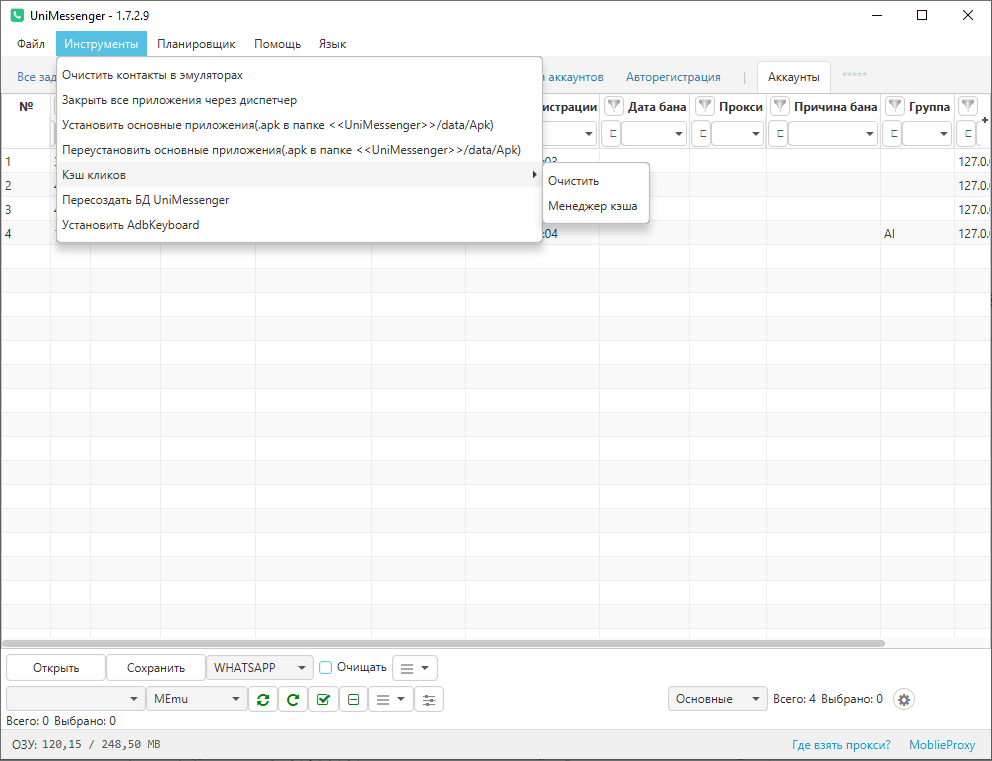
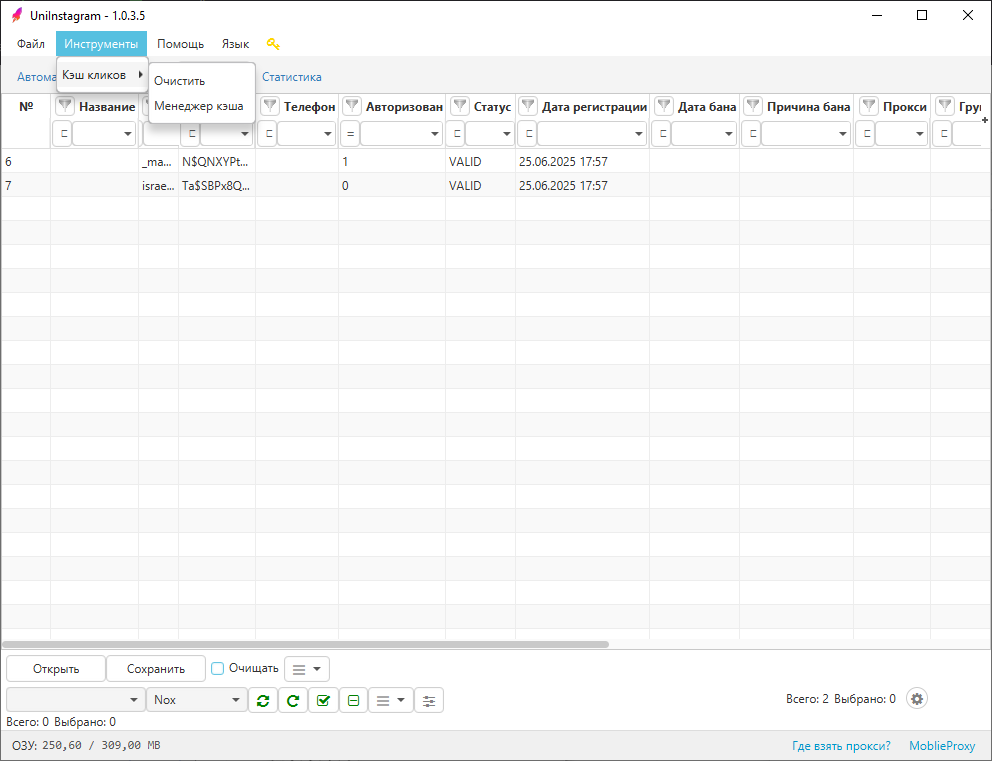
Click cache is a data store that saves the coordinates of every click the program makes on the device (emulator / phone); on repeat clicks, the cached coordinates are used. This shortens the time for all repeat clicks because the coordinates don't need to be recomputed from the emulator. A click on the saved coordinates will happen even when emulator data is not available at the moment.
Clear — clears the click cache and removes the previously saved click coordinates.
The click cache is enabled by default; you can turn it off if needed. Use click cache is in: File → Settings → Emulator.
Cache Manager
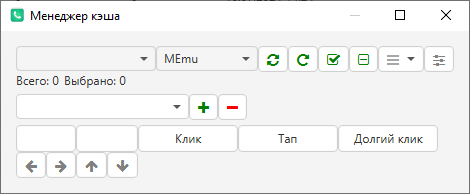
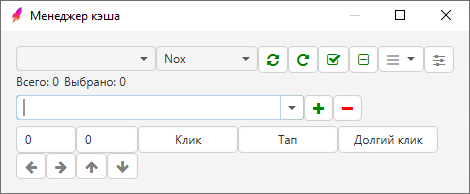
The Cache Manager (see Screen 3 for UniMessenger, see Screen 4 for UniInstagram) includes:
- Device selection and its settings (more about settings — here).
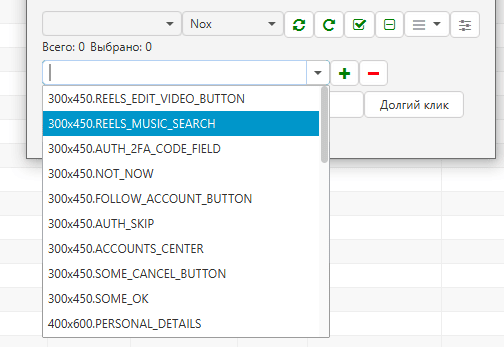
- A list of saved clicks (see Screen 5), with the ability to add (+) or remove them (−), as well as edit the coordinates and the click format (click/tap/long click).
The saved-clicks list shows: the device resolution (will work on all devices with that resolution) and the action name.
The arrow buttons (←), (→), (↑), (↓) let you edit the click coordinates for the chosen device: they shift the coordinates by +/-5.
Click — emulates a short press of a mouse button or another physical button, followed by release. Tap — emulates a brief touch of the touchscreen with a finger (or stylus) with a quick lift-off. Long click — emulates holding a mouse button or finger on the screen until the system registers it as the intended gesture.