
How to save an account to the program
Step-by-step instructions for registering, importing, and saving WhatsApp, MAX, and Instagram* accounts in the program.
You can save an account to the program in 2 ways:
- Import an account (from a folder, .zip archive, or file).
For more on account import, see here.
- Register an account in the app on a device (emulator / phone) and save it to UniMessenger / UniInstagram with all the data you set during registration (login, password, etc.).
To save an account to the program, you need to:
-
Open the emulator and install the app in it.
- Install WhatsApp / Instagram* from Google Play (for this you need to sign in to a Google account on every emulator you plan to run; after the app is installed you can sign out).
- Or download the .apk installer for WhatsApp / Instagram* / MAX and move it to the emulator's home screen (see Screen 1). Where to download the .apk file.
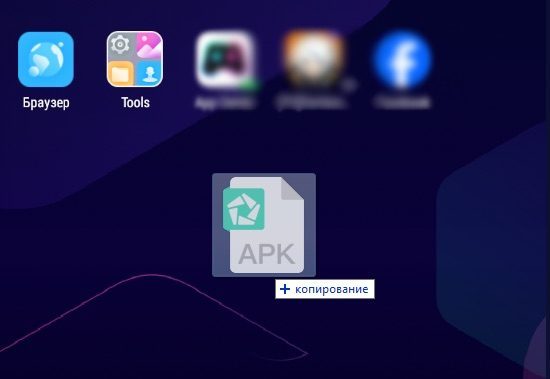
Screen 1 — Installing an .apk in an emulator For Instagram* you may have trouble picking an .apk version that matches the device model.
-
Register an account.
For WhatsApp / MAX you need a phone number that will receive the SMS. You can use your own SIM cards or work with activation services.
For Instagram*: you can register with a phone number or an email address.
-
Open the program, go to the "Accounts" tab, select the emulator, the right account type (for UniMessenger — WhatsApp / Business), and click "Save".